Markdown authoring
Write Markdown directly in a Note. Live preview renders formatting while retaining the source for editing and collaboration. Use headings for structure, lists for steps, and color sparingly to emphasize a status or phrase.
Everyday formatting
Nested ordered lists
Write ordered lists with numeric Markdown markers (1. or 1)) and indent
children beneath their parent:
Rendered Notes preserve each numeric marker as written, including its number
and . or ) delimiter. Nesting does not change the marker style. Each nested
list is indented, with wrapped lines aligned beneath the item text. The editor
retains the source markers too.
Inside an ordered list, a child may start at 2., 10), or another number;
the editor and rendered Notes preserve the same nesting and marker. For example:
Press Tab on an item to nest it under the preceding sibling, or Shift+Tab to move it back out. Tab leaves the first item at its current level when there is no preceding sibling; repeated Tab presses do not turn it into a code block. The shortcuts also work with the caret at the start of the item line.
Four spaces also work for a child beneath 1. Parent; the indentation must
belong to a parent list item. At the top level, four leading spaces create an
indented code block. In the editor, continuation lines keep their structural
indentation when the cursor moves away; extra spaces within prose still collapse
in live preview without changing the saved source.
Typed a., a), (a), i., ii., 一、, and (一) are plain text,
not Markdown list markers. Chinese text is supported inside ordinary numeric
or bullet lists. A numeric 1) marker displays as 1) in rendered Notes.
Color a phrase
Brackets hold the text; braces follow the brackets and hold named attributes:
These are DreamLake color directives using the Markdown directive convention
:name[content]{attribute="value"}. Standard Markdown has no text-color syntax.
The :color directive changes the foreground text color. Use :highlight for a
background tint; arbitrary CSS is not supported.
Use a visible word such as “Blocked” as well as color, and check readability in both light and dark themes. A fixed color stays the same when the theme changes.
Preview in light and dark themes
The same note renders an inline phrase and a colored table status in both themes:


Captured from the deployed app using a sample read-only note. Fixed colors do not
adapt to the theme; choose a color with enough contrast in the theme you use.
The sample uses :color[Important]{color="#ef4444"} and
:color[Ready]{color="green"}.
Supported values and text
Color values must be double-quoted. Use 3, 4, 6 or 8 hexadecimal digits after #
(the 4 and 8-digit forms include alpha), or one of these case-insensitive names:
black, silver, gray, white, maroon, red, purple, fuchsia, green,
lime, olive, yellow, navy, blue, teal, aqua, orange, rebeccapurple.
Content is plain text: nested Markdown, HTML and nested directives are not rendered. Escape brackets and backslashes with a backslash. Attribute-only syntax is also accepted:
Place a directive at the beginning of a line or after whitespace or an opening parenthesis. Select the directive in the editor to reveal and edit its source. Invalid colors, missing text, duplicate attributes and unknown attributes remain literal. A backslash before the colon or a code span keeps the syntax visible. Directives inside Markdown links remain literal.
Highlight a phrase
Highlights use a translucent background tint and inherit the surrounding text
color in light and dark themes. They accept the same quoted color values,
plain-text content and escaping rules as :color. Select the highlighted phrase
to edit its original source. Omit color for yellow; an explicitly empty or
invalid color remains literal.
==text== and raw HTML <mark> are not supported highlight syntax.
Add user="geyang" comment="Check the source" alongside color to attach plain-text
metadata: :highlight[Key finding]{user="geyang" comment="Check the source"}.
Use the inline/sidebar comments toggle: inline shows no annotation cards or hover
popups. Sidebar mode shows compact metadata cards in the table-of-contents column,
following passages visible in the current viewport. Click highlighted text in the
editor or use the sidebar edit action to reveal its original source.
Use canonical public handles, not display names or internal user IDs. Attribution
is self-declared; legacy names remain unresolved. See
Highlight metadata for escaping and revision-safe agent edits.
Highlight preview in both themes
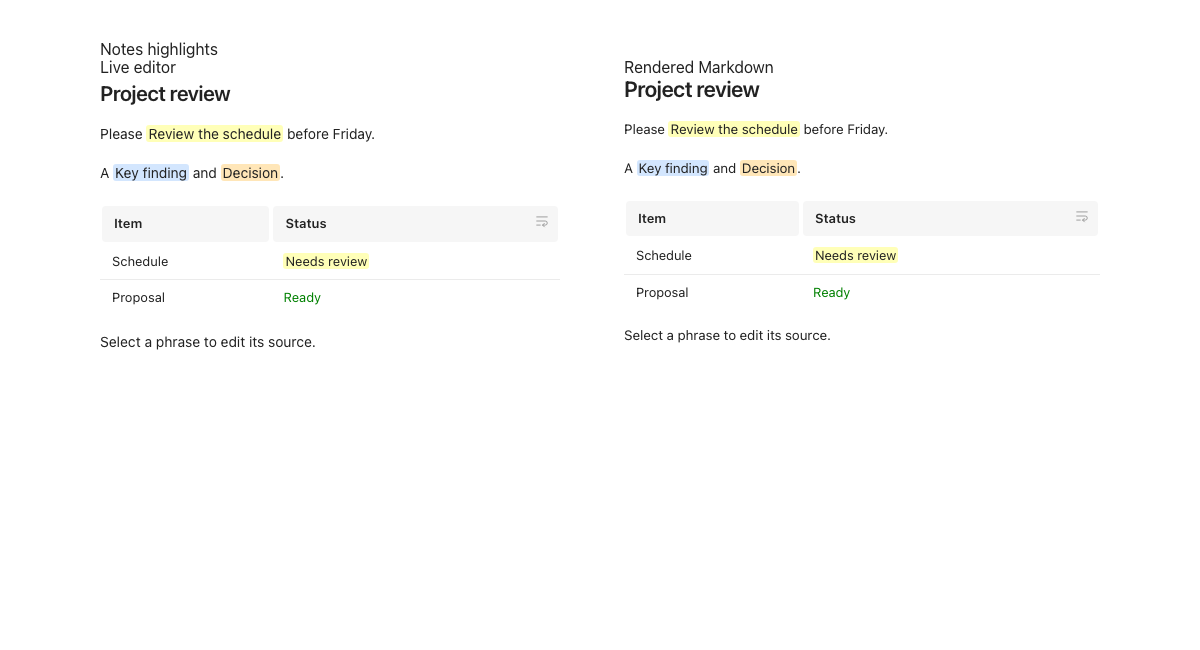
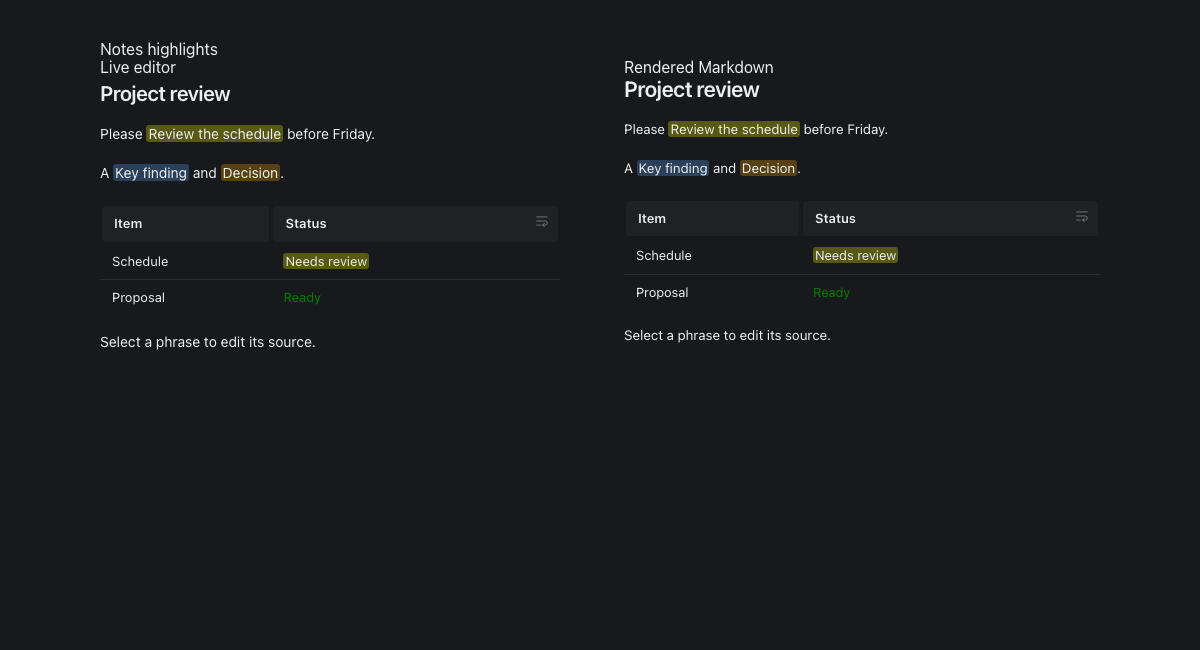
Captured from the app's actual editor and Markdown renderer using
scripts/highlight-preview.html (serve with
pnpm exec vite --config scripts/highlight-preview.config.ts; add ?dark for dark mode).
Use color in tables
Color and highlights render in Notes live preview, table cells and the app’s read-only Markdown views. Saved text, revision handling and collaborative edits retain the exact source. CLI/API HTML snapshots and external Markdown readers may show the directive literally; they do not automatically gain the app’s color renderer.
Link resources
Use resource directives to reference another Note or artifact:
See Notes for resource attributes and API editing, and Linked note items for extracting a list item into a Note.